Gyro logging for Gyroflow
OpenZCine can record the mounted phone’s gyroscope alongside a directly
connected camera’s video. Transfer the resulting .gcsv file to Gyroflow to
stabilize the footage. This workflow is available on iOS and Android.
The phone must be rigidly attached to the camera, and OpenZCine must stay open in the foreground throughout recording. A loose holder or a phone that moves after calibration changes the alignment and can cause wobble.
Test setup
Section titled “Test setup”The initial field tests used a Nikon ZR, a Tamron 35–100 mm f/2.8 lens, and a phone holder fixed to a SmallRig cage. Both an iPhone 17 Pro Max and a Pixel 7a were tested. Clips were recorded at fixed 35 mm and 100 mm focal lengths in 4K at approximately 24 fps; the 35 mm test included f/2.8.
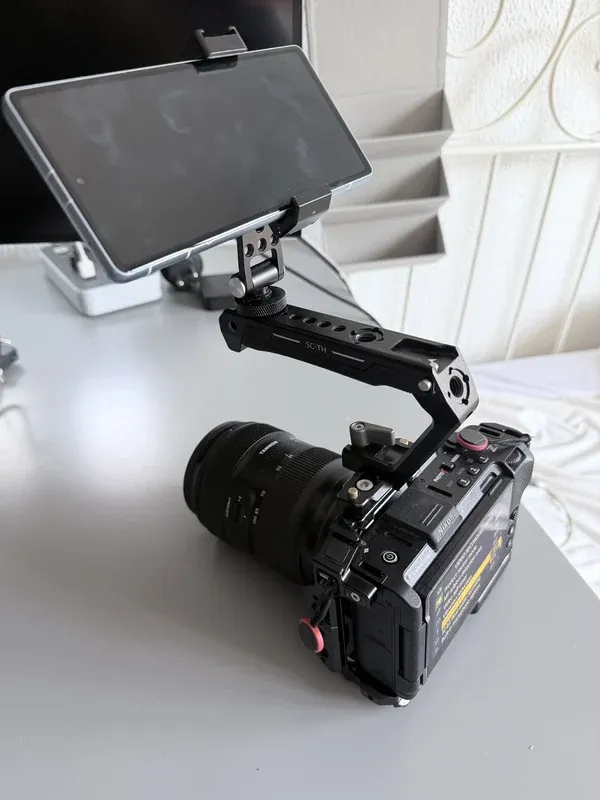
Example rig with the phone fixed to the top handle. Keep the holder’s angle unchanged after mount calibration.
For a first test:
- Turn off camera and lens stabilization. OpenZCine can turn off IBIS and Electronic VR during setup and restore their previous values afterward. The phone measures camera body movement, not independent movement inside the lens or sensor.
- Keep the zoom fixed. Use a lens profile for that focal length and camera recording mode. Use manual focus while checking the setup.
- The test recordings used a 45° shutter angle, approximately 1/192 s at 24 fps. A short exposure reduces motion blur during stabilization. This is a test setting, not a requirement for every shoot; it needs more light and gives motion a crisper appearance than a 180° shutter.
- Start with a short handheld take while standing still. Include some gentle rotation so Gyroflow can synchronize the motion. Check this before trying a walking shot or a long take.
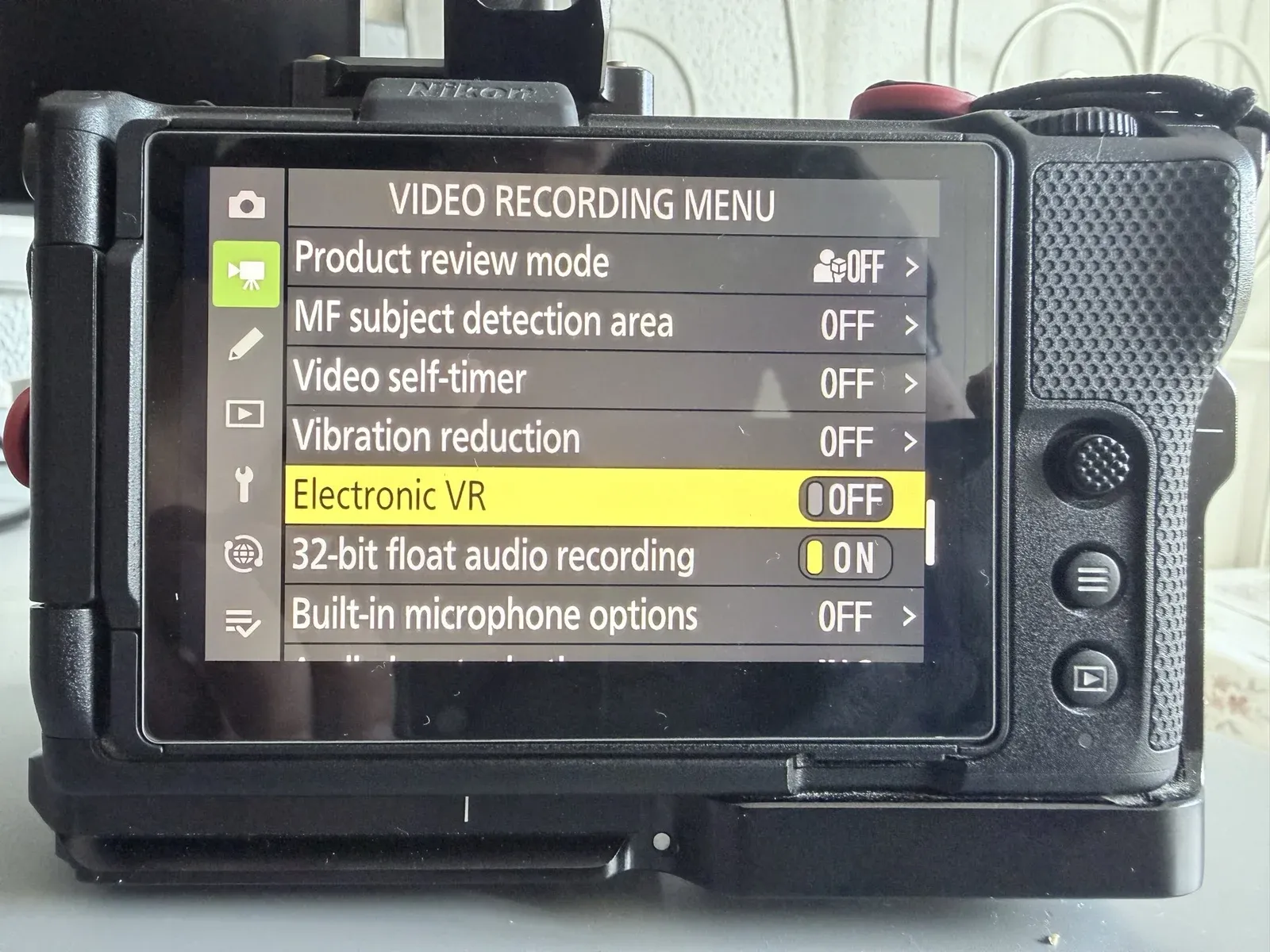
Both stabilization settings are Off in the ZR’s Video recording menu.
Successful short tests do not establish long-take drift or thermal behavior. Gyro stabilization corrects rotation; it cannot remove all perspective changes from walking or movement between foreground and background objects.
Connect and arm
Section titled “Connect and arm”- Fix the phone firmly to the cage. A tilted screen is fine when using ring calibration, provided the holder cannot move.
- Connect OpenZCine directly to the ZR and open live view. For camera Wi-Fi, use the ZR’s Connect to computer setup and join its network on the phone. Follow ZR connection and reconnect for the available connection paths.
- Keep recording stopped. This workflow supports one directly connected camera, not a relay viewer or multicam session.
- In Operator Setup → Controls, enable Log gyro with camera recordings. The guided setup opens when Gyro turns on.
- If prompted, choose Turn off IBIS to disable IBIS and Electronic VR, or Keep it on to leave them unchanged. OpenZCine restores the prior values when Gyro is disarmed or the camera session ends.
Calibrate or continue without calibration
Section titled “Calibrate or continue without calibration”Follow the three guided ring poses while moving the whole rig. Keep the phone fixed in its holder. The ring shows when to move into the pose and when to hold still. Complete all three holds to measure and verify the mount.
If the phone has not moved in its holder on this camera, choose Use last calibration to skip the ring. Calibrations are kept separately for each camera body.
You can continue without calibration. Logging still works, and those takes are marked Not calibrated. Set their orientation in Gyroflow instead. There are no mount presets or angle entry controls.
Disconnecting, backgrounding, changing camera or starting recording invalidates an unfinished calibration without removing a previously saved one. Repeat calibration whenever the phone moves in its holder, including a small shift while tapping the screen. Rotating the whole rig or changing the app’s display orientation does not change a fixed mount.
Mount calibration aligns the phone’s axes to the camera. It does not select a lens profile or synchronize the log with the video.
Record and share
Section titled “Record and share”- Return to the monitor and wait for GYRO ARMED.
- Start and stop recording normally from the app, camera, or connected remote. OpenZCine creates one gyro log for each camera-reported take.
- If the phone shifts in its holder, the monitor shows MOUNT MOVED. After the take, OpenZCine offers to recalibrate. The log records the first detected movement and its approximate offset from REC.
- After stopping, leave the app open for a few seconds to finish the log.
- Open Operator Setup → Storage → Gyro logs, find the matching take, and
tap Share log to transfer its
.gcsvfile to the computer. Use Select to share several logs together. - Transfer the matching camera movie too. Keep both files together so you can identify the correct pair.
The list marks takes Recording, Ready, Not calibrated, Small gaps, Cut short, or Mount moved. The log includes motion before and after the observed recording boundaries, so it can be longer than the video. Gyroflow aligns their contents during synchronization; matching durations are unnecessary.
Do not lock the phone, switch away from OpenZCine, or disconnect during the take. These events interrupt logging. An interrupted log may contain useful motion, but check its coverage before using it. Logging does not stop the camera recording.
Create or choose a lens profile
Section titled “Create or choose a lens profile”Phone-mount calibration and lens calibration are separate steps. Gyroflow needs a profile matching the camera, lens, focal length, and field of view of the recording mode. OpenZCine does not provide lens profiles.
For the Tamron 35–100 mm tests, separate profiles were created at 35 mm and 100 mm because a suitable profile was not available. If your combination is missing, follow the official Gyroflow lens-calibration guide. Open Lens profile → Create new in Gyroflow to begin.
Use the corresponding profile for each fixed focal length. Check the aspect ratio and any sensor crop or digital processing; do not assume a profile for another recording mode will fit. An original camera file is the clearest starting point for checking the workflow.
Prepare the clip in Gyroflow
Section titled “Prepare the clip in Gyroflow”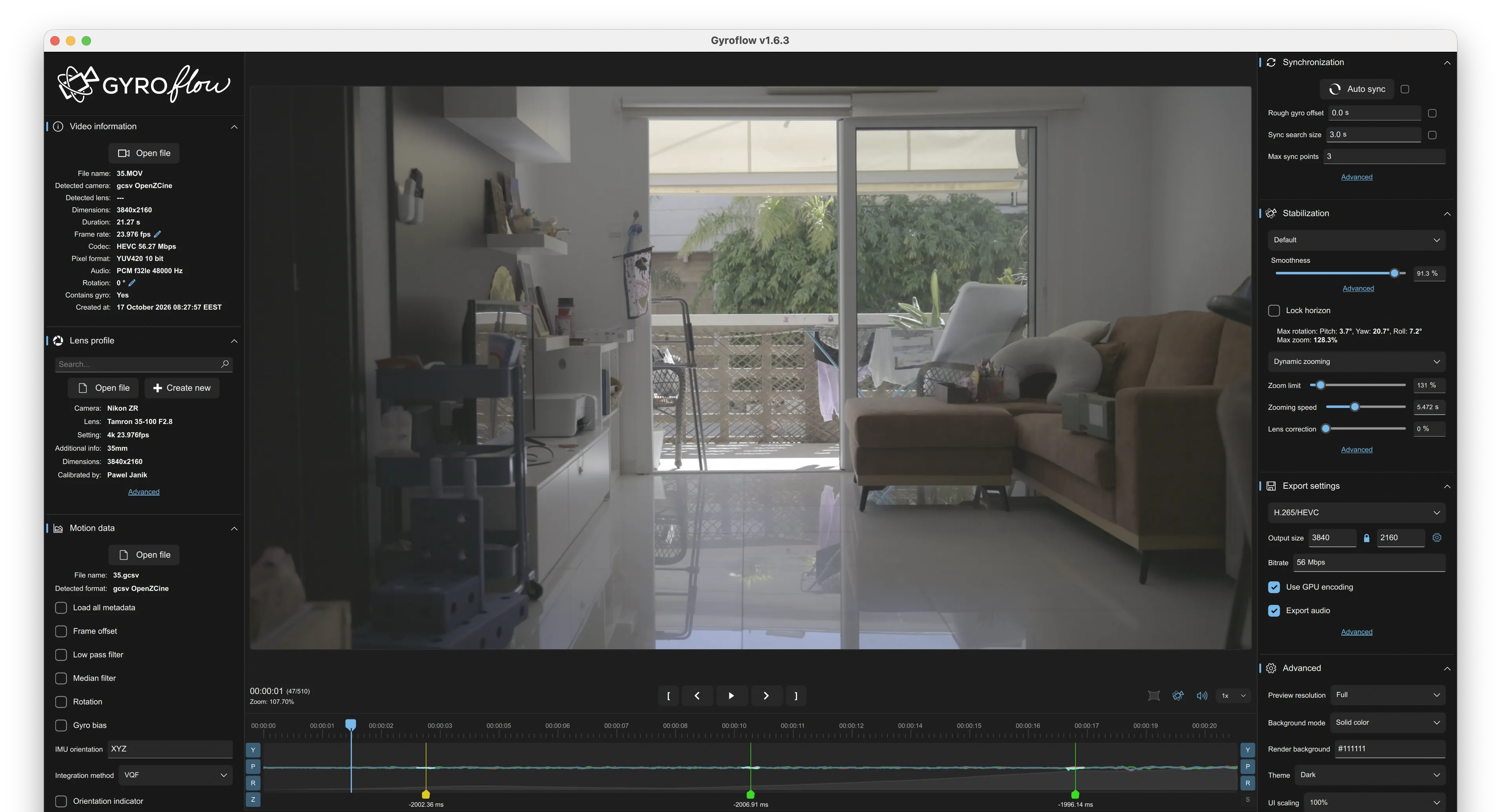
Gyroflow 1.6.3 example. Stabilization and export values are specific to this clip; follow the panel names in the steps below.
- Video information → Open file: load the camera movie.
- Lens profile → Open file: import the matching lens-profile
.json, or choose the matching profile from the database. - Motion data → Open file: load the take’s
.gcsvfile. - For a calibrated OpenZCine log, keep the imported IMU orientation
XYZand leave additional Rotation at zero. The app has already rotated these samples into camera axes. Uncalibrated logs need their alignment set in Gyroflow. - Under Synchronization, run Auto sync. The tested setup used three sync points and a 3-second search size. These are starting values, not guaranteed settings for every take. The log’s approximate REC offset can help locate the overlap, but it is not a measured video synchronization.
- Play the beginning, middle, and end. Check that stabilization improves the image and that the sync points agree. Increase the search range if it does not cover the external log’s offset. See Gyroflow synchronization for finding and correcting sync points.
- Adjust stabilization and crop while watching the result. Smoothness and zoom settings depend on the clip; copying values from another take is not part of mount calibration.
- Use Export → Export project file (including gyro data) to save a
.gyroflowproject for Resolve. This keeps the motion data with the settings. Alternatively, export a stabilized video directly from Gyroflow.
Use the project in DaVinci Resolve
Section titled “Use the project in DaVinci Resolve”Install the official
Gyroflow OpenFX plugin, then add the
Gyroflow effect to the matching original movie in Resolve. In the tested
workflow the effect automatically opened the saved .gyroflow project.
Keep the project beside the movie with the same base filename, for example:
clip.MOVclip.gyroflowclip.gcsvThe .gcsv filename does not need to match the movie; load the correct file
in Gyroflow before saving the project. If the plugin does not find the project,
use Browse in the effect’s controls. After changing and saving the
project in Gyroflow, use Reload Project in Resolve. Automatic lookup depends
on the plugin/Resolve version; see the
official Resolve guide.
Check the result in Resolve before rendering. Avoid applying a second
stabilization pass to an already stabilized export.
If the picture still wobbles
Section titled “If the picture still wobbles”Check the mount has not shifted, then verify the selected lens profile, focal length, stabilization settings and synchronization. Calibrate the mount again if its position changed. Compare a stationary handheld take with a walking take: improvement while standing still can help separate rotational alignment from perspective changes during walking.
Start with the original movie and keep rolling-shutter settings specific to that recording mode. A lens profile or phone-mount calibration alone does not measure the camera’s sensor readout time.